
Light Mode

Trade Ideas doesn't offer full Level 2 market depth. What it has is Level Q: a display in TI Pro's Advanced Order Entry panel, laid out just like Level 2, that shows the size of the best bid and the best offer in real time, and how buyers and sellers put pressure on each side.
Free account, just an email. No card.

Named to the Inc. 5000 list of America’s fastest-growing private companies six years in a row (2017–2022).

Investopedia: Best Short Term Stock Screener, 2024
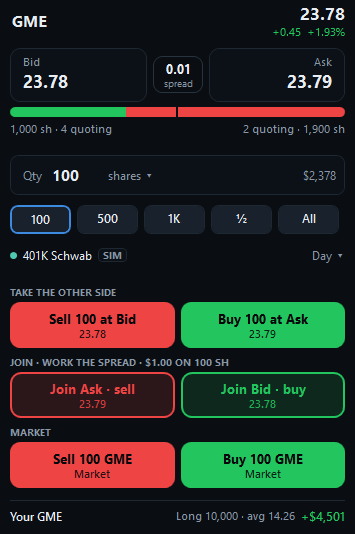
No full Level 2 depth; yes to Level Q. Full Level 2 lists many price levels from many market makers and exchanges. Trade Ideas doesn't provide that. Level Q focuses on the level that matters most when you're about to place an order: the best bid and the best offer. It shows their size live, in the familiar Level 2 layout, so you can watch pressure build or fade on each side, right inside the panel where you place the trade.
| Display | What it shows | In Trade Ideas |
|---|---|---|
| Level 1 | The best bid and best offer prices, usually with their sizes, as a quote | Yes, in quotes, charts and windows |
| Level 2 | Many price levels below the bid and above the offer, by market maker or exchange | No |
| Level Q | The best bid and best offer, their size and how many are quoting at each, live, with a pressure bar between them, in a Level 2-style layout | Yes, in TI Pro's Advanced Order Entry panel |
New to the terms? Our Learning Center explains Level 1 vs Level 2 data.
Size at the best bid and offer can change in an instant, and some orders are hidden. Use Level Q as one input alongside your chart, your plan and your stop.
Level Q shows the pressure on the stock you're trading. These Streaming Alerts watch the best bid and offer on every US stock and tell you when something unusual happens:
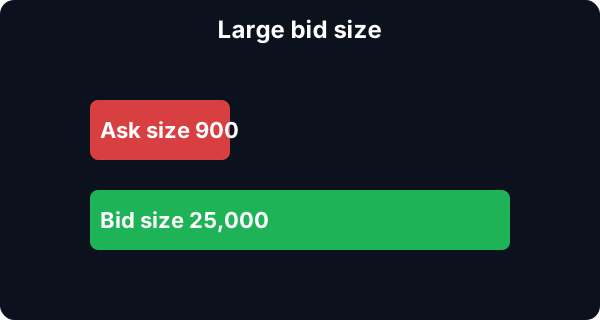
These are very short-term alerts, aimed at fast, experienced traders. Find a stock with one, open it in the Advanced Order Entry panel, and watch Level Q before you trade.
Level Q is part of the Advanced Order Entry panel in TI Pro, the desktop platform. Brokerage Plus connects that panel to brokers including Interactive Brokers, Alpaca, TradeStation and E*TRADE, plus a simulator for practice, so you read the pressure and place the order in one place. Right below Level Q are one-click buttons to take the other side (buy at the ask or sell at the bid), join the bid or the ask to work the spread, or trade at market. TI Pro runs on Windows, and on a Mac through Parallels.
More: broker connections · paper trading · the full platform
Not full Level 2 market depth. Trade Ideas has Level Q, a display in TI Pro's Advanced Order Entry panel laid out like Level 2, that shows the size of the best bid and best offer in real time so you can see the pressure on each side.
Level Q is a Level 2-style display in the Advanced Order Entry panel. It shows the best bid and best offer and their sizes live, and how they adjust as buyers and sellers put pressure on each side.
Level 2 lists many price levels below the bid and above the offer. Level Q focuses on the best bid and best offer, the prices you trade at, and shows their size and pressure live.
Yes. The Large Bid Size and Large Ask Size Streaming Alerts tell you when a stock has an unusually high number of shares on the best bid or best ask, across every US stock. Market Crossed and Large Spread alerts are there too.
Yes. Level Q sits in the Advanced Order Entry panel, and Brokerage Plus sends orders to brokers including Interactive Brokers, Alpaca, TradeStation and E*TRADE, or to a simulator for practice.
Free account, just an email. No card. Ready to buy? See plans & pricing